Before we get started, I just want to state I am new to Docker and Traefik. I suspect how I am doing things is overly complicated and/or “not the right way”.
My intention with this blog post is to help walk you through how to setup a Tor Client within a Docker Container, attach it to your Traefik Docker Container over a private Docker Network and then configure an Onion Service (Hidden Service) so users of the Tor Browser can access a service you host over the Tor network.
I assume you are reading this guide because you already know what Tor is, have Traefik in your homelab, know a little about Docker networking and want to layer on access via Tor.
I started digging into how to do this and came across this blog post from 2022 that left something to be desired but was enough information to get me going. I am hoping to expand on that original blog post and provide something easier to follow and which is more secure.
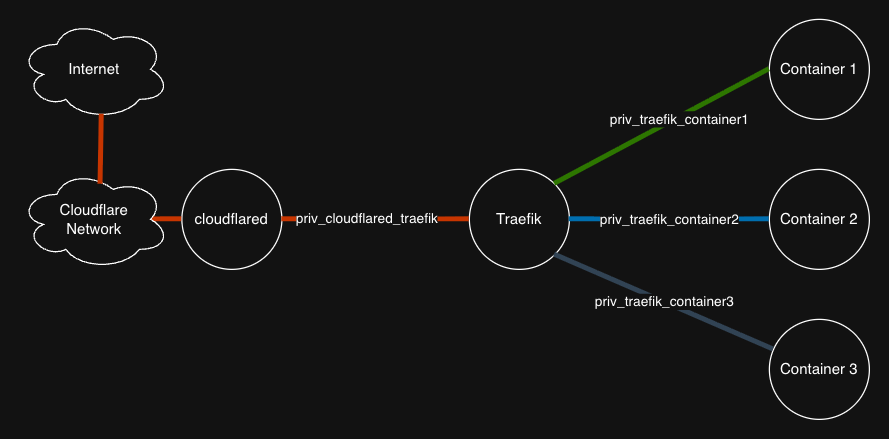
I currently use Cloudflare Tunnels to expose my self-hosted services over the regular internet. I have a private docker network called priv_cloudflared_traefik that connects my cloudflared container to my traefik container. On top of that, each container I want to expose to the internet has it’s own private network between itself and traefik called priv_traefik_<CONTAINER NAME>. This might be overly complicated but I feel it nicely keeps things isolated from each other.
This is an overview of how things look now. All of the circles in these diagrams are docker containers on the same host:
To keep things simple, I wanted to replicate how cloudflared works but with tor. This is what I am aiming for:
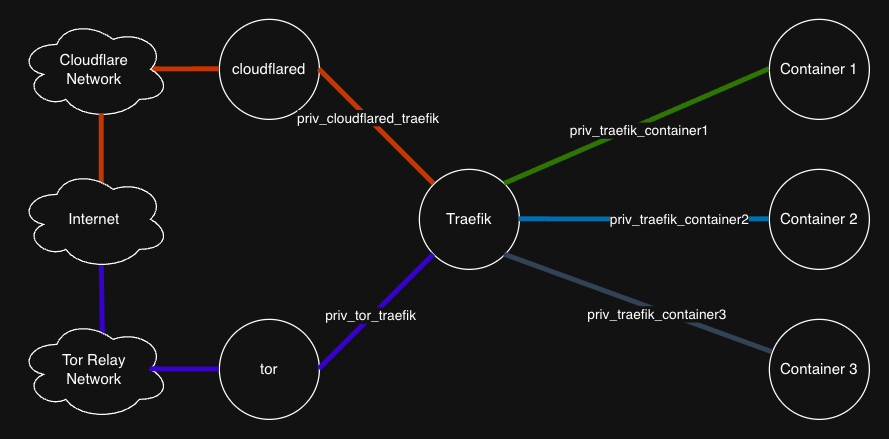
I ended up building my own Docker Container for tor for this project, it was a great learning opportunity and, in all honesty, I didn’t think to search Docker Hub first.
My container can be found here: https://hub.docker.com/r/thefizi/alpine-tor-for-traefik
Later, I found two Tor Docker Images that look like they will work for this project and appear to be being kept up-to-date:
Any of these containers should work so there is no requirement to use mine but this guide is written using my container which I plan to keep updated.
All of my Traefik configuration examples are going to use labels so you may need to translate those depending on how you configure your Traefik.
The first thing we need to do is create a http (no SSL/TLS) entry point on the traefik container that does not force a redirect to https. If you have one of these already you can re-use it. I appended this to my traefik configuration to create an http entry point, on port 8181, that does not redirect to https (SSL/TLS), called webnorclear (web, no redirect, clear). That is my naming convention, adjusted as you’d like:
# Entry point for HTTP traffic with no SSL redirect
- "--entrypoints.webnorclear.address=:8181"
When you connect to an Onion Service via the Tor Browser it is expecting http and you don’t want traefik to try and redirect that to https like you would on the regular internet.
Next we need to create a docker network to attach our tor and traefik containers to so they can communicate with each other and nothing else. In my case, I manually create that network first and then attach both containers to it so it doesn’t matter what order I bring my containers up in. Youy can adjust the network name for your environment and create it via the CLI by running:
sudo docker network create priv_tor_traefik
Or you can create it via Portainer by clicking ‘Networks’, ‘Add Network’ and setting the following:
- Name: priv_tor_traefik
- Enable manual container attachment: Toggled On
Now we can create our tor container which will accept inbound connections from the Tor Network and pass them to traefik for proxying to our services. You will probably want to adjust the image if you don’t want to use mine and the volumes for your environment:
services:
  tor:
    image: thefizi/alpine-tor-for-traefik:latest
    container_name: tor
    restart: unless-stopped
    networks:
      - priv_tor_traefik
    volumes:
      - tor_data:/var/lib/tor
      - /root/docker_configs/tor:/etc/tor:ro

volumes:
  tor_data:
    driver: local

networks:
  priv_tor_traefik:
    name: priv_tor_traefik
    driver: bridge
    external: true
Then we can attach our traefik container to the priv_tor_traefik network by updating it’s configuration:
services:
  traefik:
    image: traefik:latest
    ...
    networks:
      # Private network between tor container and traefik
      - priv_tor_traefik
    ...

networks:
  ...
  priv_tor_traefik:
    external: true
We can now create an Onion Service in the tor container that forwards to traefik for our first self-hosted service. Edit the /root/docker_configs/tor/torrc file, scroll down to the “hidden services” section and add a new hidden service like so:
# Template
HiddenServiceDir /var/lib/tor/[FQDN]/
HiddenServicePort 80 [TRAEFIK CONTAINER NAME]:[HTTP TRAEFIK PORT WITH NO REDIRECT TO HTTPS]

# Example for my Gitea deployment
HiddenServiceDir /var/lib/tor/git.pickysysadmin.ca/
HiddenServicePort 80 traefik:8181
In this case I am creating a new hidden service for my Gitea deployment which listens on port 80 on the Tor Network (default) and forwards any incoming traffic to my traefik container on port 8181. Again, adjust as needed for your environment.
Note: To add additional Onion Services later you just add another pair of “HiddenServiceDir/HiddenServicePort” lines to the configuration and restart the tor container.
Restart the tor container and it will generate the needed public/private keys to bring your Onion Service online and create your Onion Service URL.
Note: Onion Services URLs are randomly generated. There are ways to generate vanity URLs (like I have with this blog) if that’s your thing.
If you are using my docker image, all you need to do is open the console in Portainer and wait 30s after start-up and a list of all configured Onion Services will appear in console.
If you aren’t using my container, or want a CLI method, this should work:
# Template
sudo docker exec tor cat /var/lib/tor/[FQDN]/hostname

# Example
sudo docker exec tor cat /var/lib/tor/git.pickysysadmin.ca/hostname
geabt5wzimq6fzqu2atnuqvcey7ygiy5u4xa5fqxrotcb4ncix64zcqd.onion
Finally, we need to configure a router, service and middleware (optional) on traefik to handle the tor traffic. Here is what my traefik labels look like in my Gitea docker compose:
    labels:
      - "traefik.enable=true"
      - "traefik.docker.network=priv_traefik_gitea"

      # Router 1: git.pickysysadmin.ca
      - "traefik.http.routers.gitea.rule=Host(`git.pickysysadmin.ca`)"
      - "traefik.http.routers.gitea.entrypoints=websecure"
      - "traefik.http.routers.gitea.tls.certresolver=letsencrypt"
      - "traefik.http.routers.gitea.service=gitea-svc"
      - "traefik.http.routers.gitea.middlewares=gitea-torrd-headers"

      # Router 2: git.pickysysadmin.ca (TOR)
      - "traefik.http.routers.giteaTor.rule=Host(`geabt5wzimq6fzqu2atnuqvcey7ygiy5u4xa5fqxrotcb4ncix64zcqd.onion`)" # Onion Service URL
      - "traefik.http.routers.giteaTor.entrypoints=webnorclear" # Non-redirecting, non-SSL/TLS listener on Traefik
      - "traefik.http.routers.giteaTor.tls=false" # Disable SSL/TLS
      - "traefik.http.routers.giteaTor.service=gitea-svc" # Send to my gitea-svc service listed below

      # Gitea Service
      - "traefik.http.services.gitea-svc.loadbalancer.server.port=3000"

      # Middleware to add Tor Hidden Service Headers to non-Tor connections
      - "traefik.http.middlewares.gitea-torrd-headers.headers.customresponseheaders.Onion-Location=http://geabt5wzimq6fzqu2atnuqvcey7ygiy5u4xa5fqxrotcb4ncix64zcqd.onion"
In my case I attach my Gitea container to traefik via it’s own private network (priv_traefik_gitea) and have a standard router (Router 1) for it and service configured to traefik knows where to send all my normal traffic.
I’ve added a second router (Router 2) to handle the traffic from tor.
The middleware entry is optional but when attached to the regular traffic router (Router 1) if someone visits your site via the Tor browser without using the Onion Service URL, you get this icon:

Once you’ve updated the traefik labels, restart the container and you should be able to access your service, using the Tor Browser, via it’s Onion Service URL.
So far, this has been working well for me in my homelab. I’ve run a few spot checks to make sure the container is still running and my services are still accessible via Tor. It has been more reliable than my previous setup which was the Tor client on a Rocky Linux VM and nginx as my reverse proxy. For some odd reason the Tor client would just stop passing traffic.